Overview
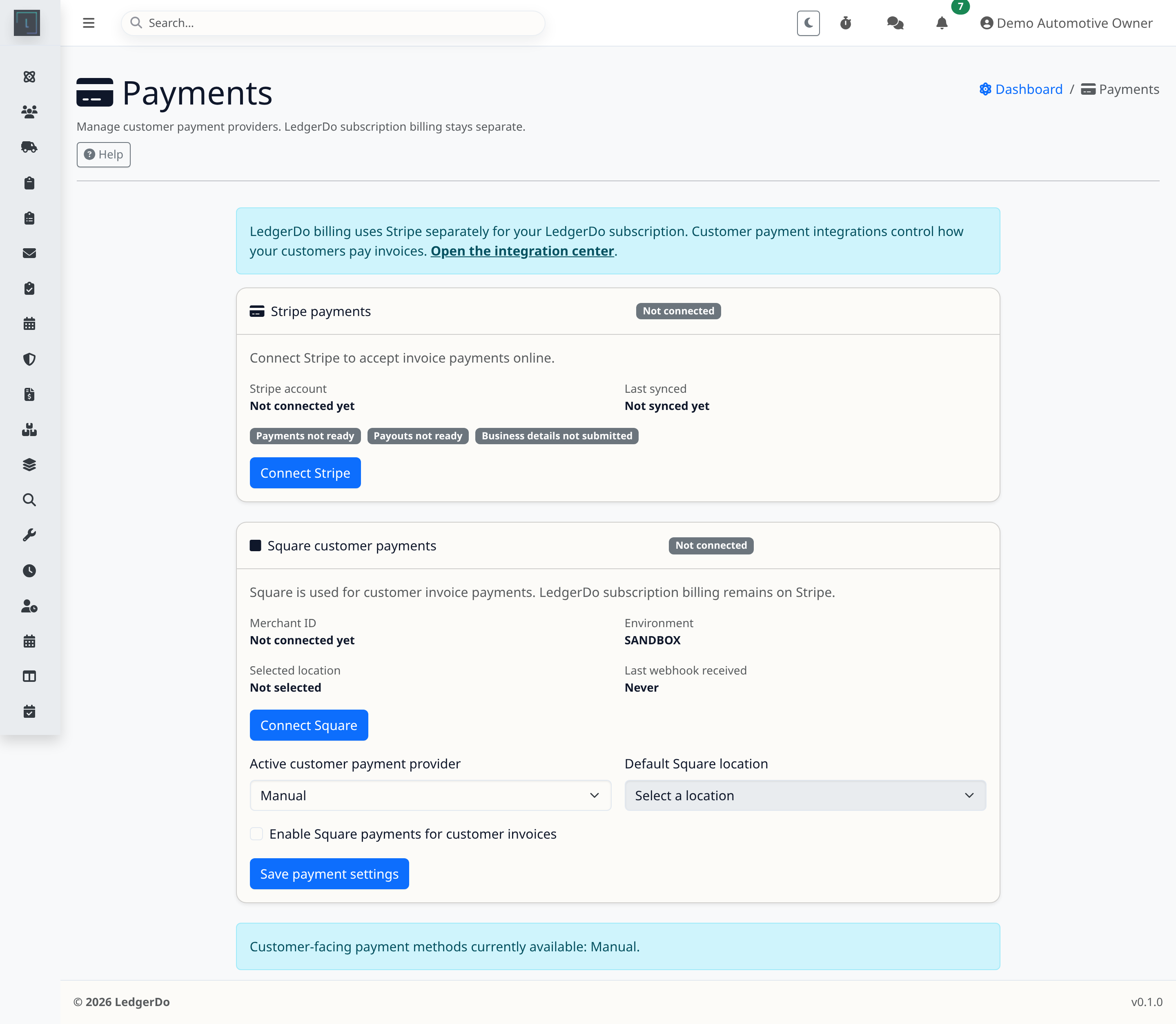
Connecting a processor is not just about authorizing the account. You also need to confirm the processor is active in LedgerDo and that invoice checkout is using the provider you expect.
Before you begin
- Have access to the Stripe or Square account that should receive deposits.
- Know whether your team wants online-only, in-person, or mixed payment handling.
Steps
- Open the Payments settings page and start the provider connection flow.
- Complete the authorization and return to LedgerDo.
- Confirm the provider status, account or location details, and whether online checkout is enabled.
- Open a test invoice and verify the payment option appears the way your customers will see it.
Tips
- Connect one provider cleanly before testing fallback/manual paths.
- Document who owns the processor account so future reconnects do not stall.
Troubleshooting
- If checkout is unavailable, review the provider status message first before editing invoices.
- If the wrong account is connected, disconnect and reconnect with the intended credentials instead of forcing workarounds.
- If the tenant is still in manual-only mode, invoices may send without a pay button even though the provider account exists.
Related articles
Need more help
If processor setup is blocked, include whether the problem happens during the connect flow, after returning to LedgerDo, or only on live invoice checkout.