Overview
A work order tracks active work from intake through completion. It should clearly identify who requested the work, what needs to be done, and who on your team owns the next step.
Before you begin
- Confirm the customer record exists and is attached to the right vehicle, asset, or subject.
- Know whether the job should start from a fresh work order or from an approved estimate conversion.
Steps
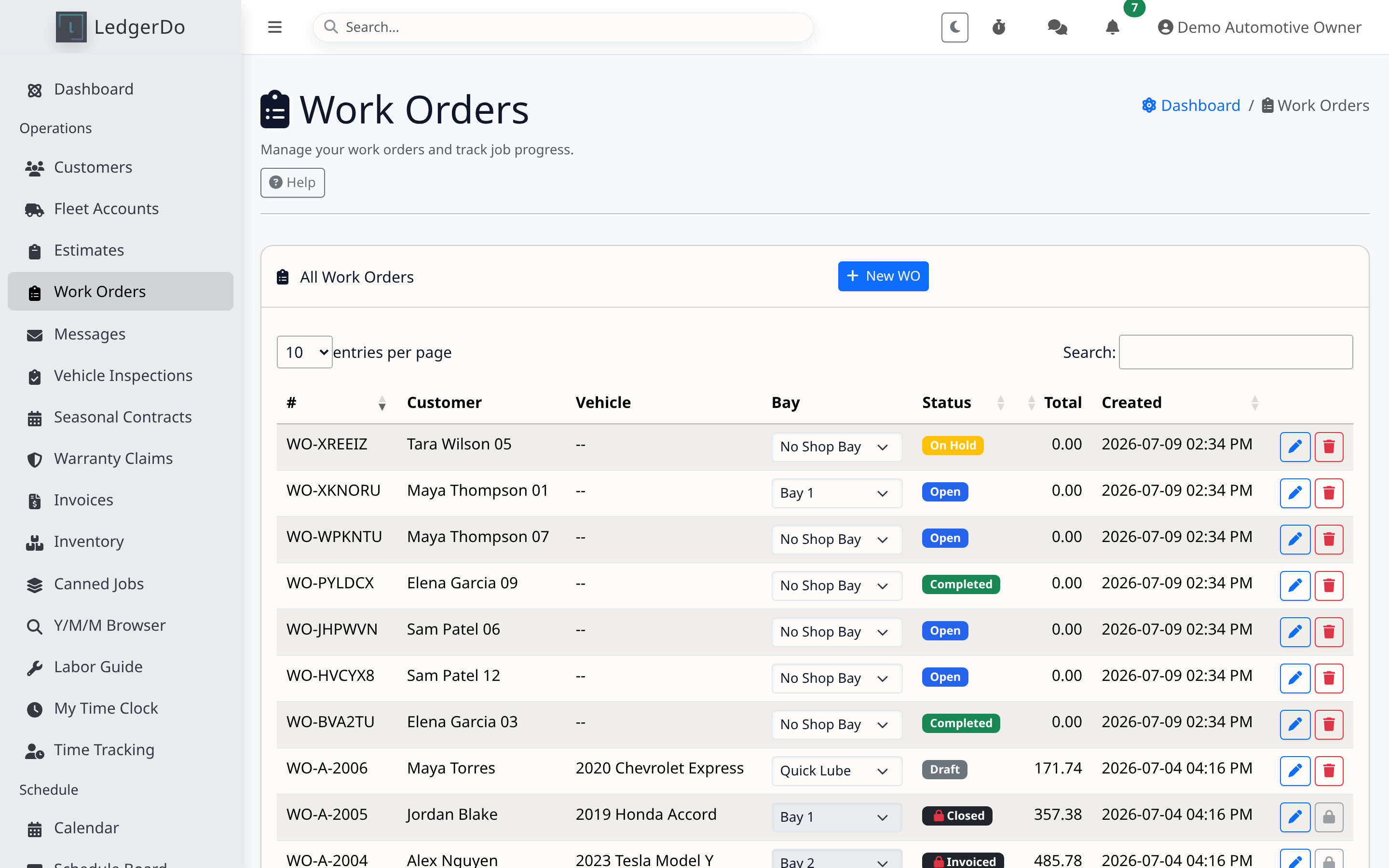
- Go to the Work Orders page and choose Create Work Order.
- Select the customer, linked vehicle or subject, and enter a concise job title or concern.
- Add requested work, internal notes, promised timing, and any assignee or bay information your team uses.
- Set the initial status to match reality, not what you hope happens next.
- Save the work order and confirm it appears correctly on the list and any relevant schedule views.
- As work progresses, update status, labor/parts details, and notes instead of leaving the record static.
Tips
- If you already quoted the job, converting the estimate reduces duplicate entry and keeps pricing aligned.
- Use internal notes for technician or advisor context, not for customer-facing approval language.
Troubleshooting
- If the work order is missing from the expected list or board, check filters, status, and assigned date fields.
- If the wrong customer or vehicle was attached, correct it early before inspections, invoices, or messages reference the wrong record.
- If your team skips status updates, reports and contextual help links become much less reliable.
Related articles
Need more help
If the work order form loads but key fields or actions are missing, include the tenant type and the exact page URL when you contact support.